
How to open links in different Chrome profiles in OSX
Attention: This blog moved to my new Substack. Follow me there for updated content!
Are you annoyed by work stuff openning in your personal Chrome? Follow these steps and see how your productivity skyrockets 🚀
- Install Finicky:
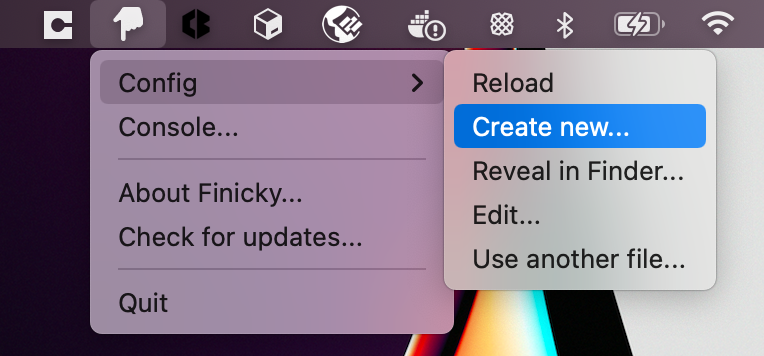
brew install --cask finicky. - Create a new
Finickyconfig.
- In Chrome, visit
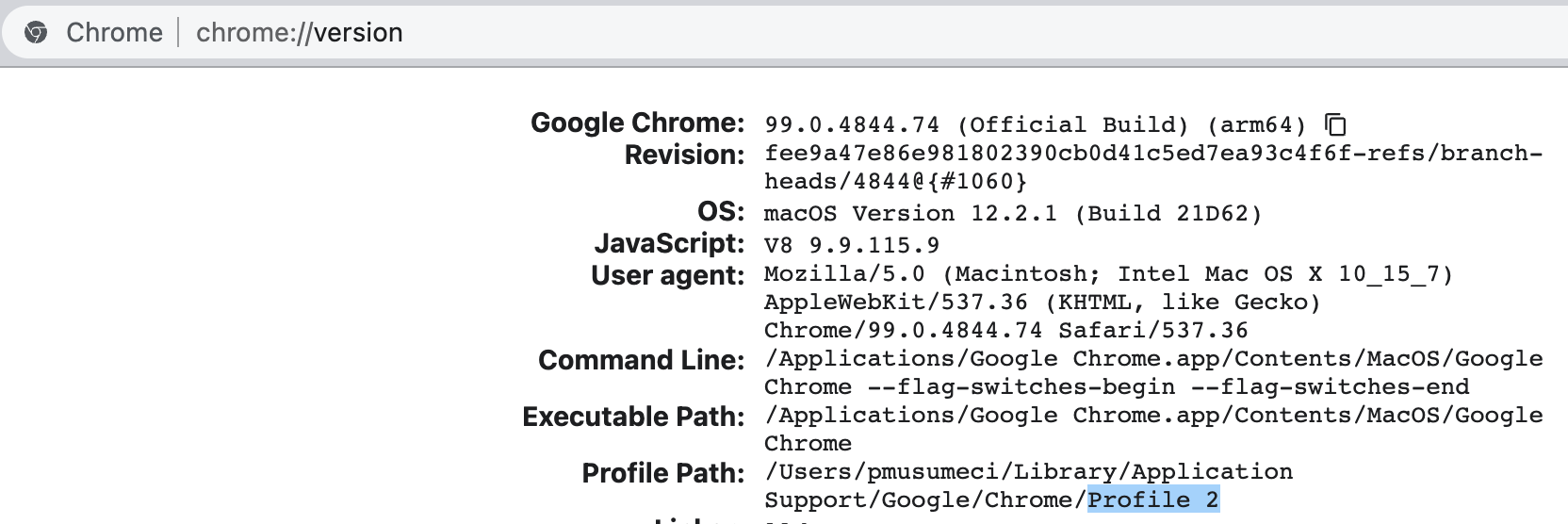
chrome://versionand find your the name of the profile you want to use.
- Edit the new config
~/.finicky.jsand use something similar to:
1
2
3
4
5
6
7
8
9
10
11
12
13
14
15
16
17
18
19
20
21
22
23
24
25
26
27
28
29
30
31
32
33
34
35
36
37
38
39
40
41
42
43
44
45
46
47
48
49
50
const personal = {
  name: "Google Chrome",
  profile: "Profile 3",
};

const work = {
  name: "Google Chrome",
  profile: "Profile 2",
};

const slackApp = "/Applications/Slack.app";

module.exports = {
  defaultBrowser: "Google Chrome",
  options: {
      hideIcon: false,
      checkForUpdate: true,
  },
  handlers: [
      // Links opened from Slack
      {
          match: ({
              opener
          }) => ["Slack"].includes(opener.name),
          browser: work,
      },
      // Matches links containing the name of my company
      {
          match: /myCompany/,
          browser: work,
      },
      // Social media
      {
          match: /facebook|twitter|instagram/,
          browser: personal,
      },
      // Slack deeplinks
      {
          match: ({
              url
          }) => url.protocol === "slack",
          browser: slackApp,
      },
      // Open Slack links in the app
      {
          match: /slack.com/,
          browser: slackApp,
      },
  ],
};
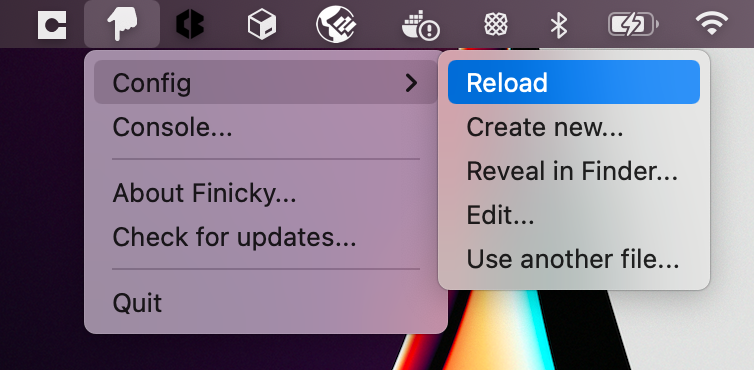
- Reload
Finickyconfig.
I hope this tip improves your productivity as much as it improved mine!
Comments